
Check overtime early enough to verify the work, correct the job code, or adjust the schedule. Don't wait for payroll to turn a manageable exception into last-minute cleanup.
Key takeaways
- Capture hours where the work happens, with the employee, date, time, and job attached.
- Configure the rules that apply to each worker or group instead of relying on one company-wide assumption.
- Use one owner and a response time for every overtime alert.
- Approve time only after a manager checks hours, breaks, job assignments, and edits.
- Treat the payroll export as the end of the control loop, not the first time anyone checks the data.
| Checkpoint | What to verify | Owner | Action before the next step |
|---|---|---|---|
| Clock-in | Worker, time, location context, job, and task | Employee or crew lead | Fix missing or incorrect details while the shift is current |
| Policy setup | Correct workweek and assigned policy | Payroll or administrator | Confirm the assignment before using the totals |
| Overtime flag | Hours near or beyond the configured threshold | Supervisor or dispatcher | Confirm the need, check staffing, and document the decision |
| Timesheet check | Breaks, edits, overlaps, notes, and job changes | Manager or approver | Return exceptions for correction before approval |
| Job-cost check | Regular and overtime hours charged to the right job | Project manager or owner | Recode misassigned time and investigate unplanned labor |
| Payroll handoff | Final export batch | Payroll | Final totals sent once without rekeying |
What is an overtime tracker?
Use overtime tracking software to record work time, evaluate those hours against configured rules, and route possible overtime for manager attention. Give managers views by worker, pay period, crew, and job so they find the record behind a total, identify its owner, and decide what needs attention before approval. Software doesn't decide which laws apply.
That makes it different from a basic timesheet. A timesheet tells you what someone entered. The overtime-control workflow adds rules, visibility, exceptions, approvals, job attribution, and a payroll handoff. It also has a narrower job than a wage calculator, which focuses on computing pay after payroll confirms the hours and applicable rates.
Start with a consistent employee-hours process, then add the overtime controls below.
How overtime tracking software works from clock-in to payroll
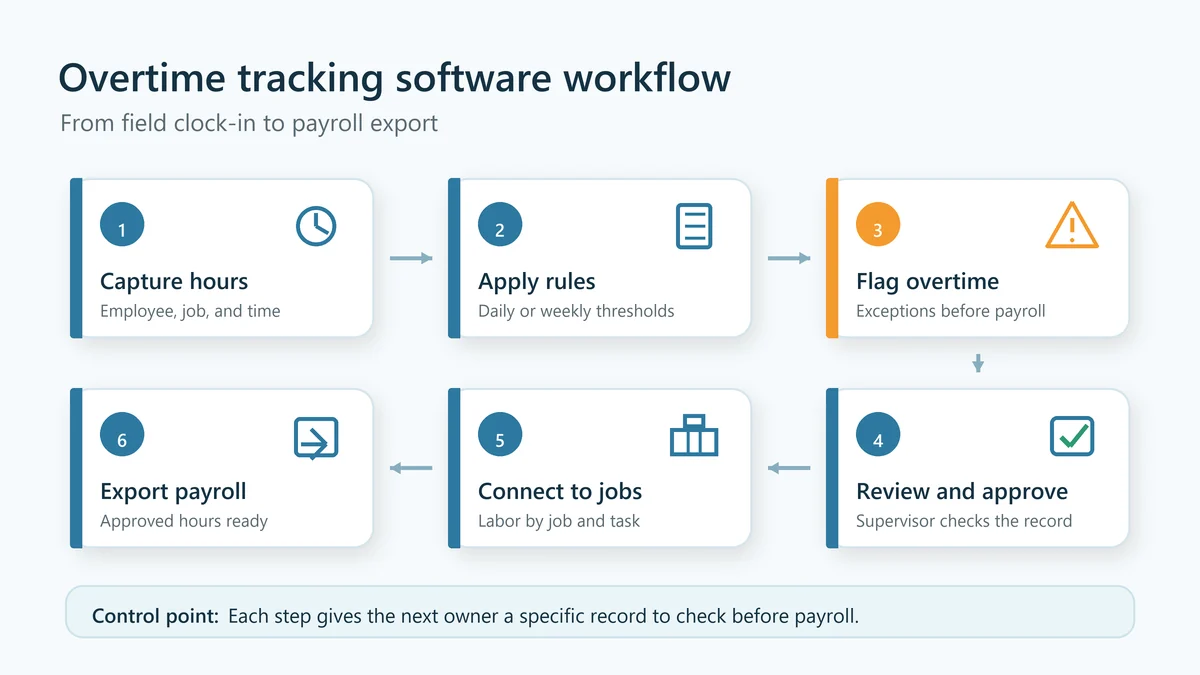
The strongest employee overtime tracking process is a chain of decisions from the field to payroll. Each step gives the next owner a specific record to check. A missing job at clock-in leaves the total mathematically correct but unusable for job costing. Follow these six steps to close that gap.
1. Capture hours where the work happens
Record each employee's start and stop times where the work happens. For mobile crews, use an overtime tracker app instead of rebuilding the week from memory. Capture the worker, date, start and stop times, breaks, job, and the task or cost code your business uses.
Keep the employee action short. Present active jobs and relevant tasks, then allow a short note when the entry needs context. Test the choices with a crew before rollout. Limit the form to fields used for checking, approval, job costing, or export.
Use location signals for a defined business question. Check whether the employee clocked in at the assigned site, and keep a manager in the process. For a related setup, see GPS time tracking.
Crews occasionally lose service. Check how the app handles a weak connection, when it syncs an offline entry, and whether that entry remains distinguishable from a later manual edit. The office needs a coherent history, not only a final total.
2. Apply the right overtime rules
Assign the overtime policy that applies to each worker or group, then verify it on representative timecards. Document the workweek, policy owner, effective date, and any state, local, contractual, or company requirement the administrator used when configuring the account.
At the federal level, the weekly overtime threshold is 40 hours before overtime compensation applies.
The federal overtime rate is no less than one and one-half times the regular rate.
Check state and local requirements separately before configuring a policy.
Configure software only after your business identifies the applicable policy. Put the wage-and-hour determination outside the software setup, then confirm the workweek, assignment, and result on representative timecards.
Recheck policy assignments when an employee changes role, work location, union status, or crew. Confirm the person's setup before relying on the calculated result.
3. Flag approaching and recorded overtime
The overtime flag needs to create time to act, not merely announce what already happened. Set visibility before the threshold. A supervisor who sees a crew member approaching overtime verifies the schedule. The supervisor then moves nonurgent work, redistributes a task, or approves the extra time with a clear reason.
Define each signal before turning it on. Use a warning for time approaching a configured threshold. Use exceptions for entries that need attention, such as a long shift, missed clock-out, overlap, or hours without a job. During emergency work, record the time and route it to the appropriate approver.
Alerts also need a recipient. Route a staffing warning to the person responsible for the schedule. Route a time-entry exception to the person responsible for verifying the record. Sending every notification to payroll makes payroll the cleanup crew for decisions that belong in operations.
Overtime tracking software workflow from employee clock-in through approval to payroll
4. Check and approve the timesheet
Treat approval as the control point between a reported shift and a payroll-ready record. Check more than the total: inspect missing punches, break entries, manual edits, overlaps, job changes, notes, and the reason for overtime. Resolve questions while the employee and supervisor still remember the day.
Use a consistent approval window. A daily exception check works well for active crews because it catches problems while the work is recent. A final weekly check confirms every day is complete before a manager locks or exports the timecard.
Keep corrections visible in the record. An approver needs to know what changed, who changed it, and why. Do not turn the process into a hunt through texts, paper notes, and a spreadsheet. If your team is still moving off manual records, this guide to the shift from paper timesheets to paperless time tracking can help frame the rollout. Teams moving away from paper use a construction timesheet template to define fields and approval responsibilities before configuring them in software.
5. Connect overtime to jobs and labor costs
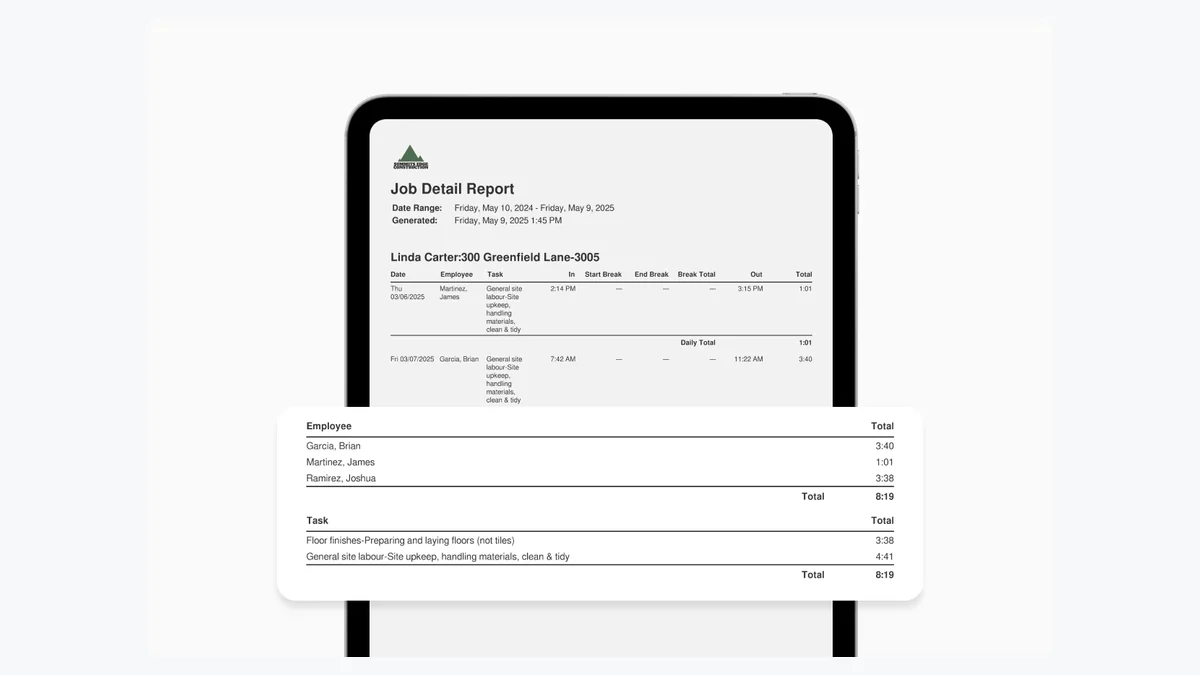
Assign each time entry to the correct job, phase, or task. Then check overtime by job and crew to find the record that needs attention. Separate approved schedule pressure from a coding mistake before changing the staffing plan, estimate, or timecard.
Check overtime beside the operational context. Was a crew covering an emergency call? Did access delays extend the shift? Was travel assigned to the correct job? Did a worker forget to switch tasks? The right response depends on why the hours occurred.
Keep payroll accuracy and project coding as separate checks. Confirm the payable hours, then confirm the job and task that receive the labor. Use accurate field time tracking to compare planned labor with the time recorded against each job.
Employee overtime tracking report showing overtime hours by job and crew
6. Send approved hours to payroll
Send payroll approved time in the format its system expects, with separate regular and overtime categories. Choose a direct integration or structured export when it fits the payroll setup. Before import, confirm the pay period, employee mapping, approval status, and record count.
The federal recordkeeping rule includes hours worked each workday and total hours worked each workweek.
Avoid fixing upstream errors inside payroll without feeding the correction back to the time record. Otherwise, the payroll result and job-cost report disagree. Reopen or return the timecard, document the correction, approve it again, and then export the authoritative version.
What to look for in an overtime tracker app
Choose the app that handles your real exceptions with the least friction. Test the complete field-to-payroll workflow with a representative crew and pay period, including a correction and an approved overtime entry. Score each option carefully on worker effort, manager visibility, job detail, approval control, payroll fit, and record history:
- Mobile usability: Clock-ins, job selection, task changes, breaks, and notes in a field test.
- Policy flexibility: Assignment of overtime policies to individuals or groups, plus a clear view of the active policy.
- Early visibility: The right supervisor sees approaching overtime in time to make a staffing decision.
- Exception handling: Managers find missed punches, overlaps, edits, and uncoded hours and return them for correction.
- Approval controls: Test how managers approve complete timecards and return unreviewed changes for correction.
- Job attribution: Reports show regular and overtime hours by worker, crew, job, and task.
- Payroll handoff: Check how the export or integration maps employees, regular time, overtime, and earning codes.
- Record history: The business retrieves the original entry, edits, approvals, and export-ready result when questions arise.
Run a pilot with the difficult cases, not only a perfect eight-hour shift. Test a missed clock-out, a midshift job change, offline work, a manual correction, approved overtime, and a worker assigned to a different policy group.
How to keep employee overtime accurate and under control
Use software to surface the records that need attention, then use a repeatable management routine to check them. Define who checks field entries, owns staffing decisions, approves corrections, and releases time to payroll. Run that routine throughout the workweek instead of concentrating every decision at the pay-period cutoff for the office.
- Document the workweek and policy settings. Record which policy applies to each employee or group, who maintains it, and the last policy-check date. Complete the wage-and-hour check before translating the decision into software settings.
- Set an early check threshold. Give supervisors a useful warning before the threshold, then define the advance-approval point and the process for documenting emergencies.
- Name an owner for every exception. Operations owns staffing decisions. Supervisors verify field context. Employees correct incomplete entries. Payroll checks the approved handoff.
- Check exceptions on a fixed cadence. Check missing punches and approaching overtime during the week, then complete a pay-period check before export.
- Study patterns by job and crew. Repeated overtime points to a scheduling constraint, estimate gap, travel burden, rework, or an incorrect job assignment. Ask what created the hours before deciding what to change.
Don't discard recorded work time because nobody approved it in advance. Investigate disputed entries, correct them when the record supports a change, and retain the resulting time record.
Track overtime before it becomes a payroll problem
Move the first overtime check closer to the work. ClockShark’s time tracking software for field crews connects mobile time, jobs, approvals, and payroll preparation in one shared record. Test one crew, one workweek, and the exceptions that currently create the most cleanup before payroll day arrives.
Frequently Asked Questions
How do I track my overtime hours?
Record the start and end of each work period, breaks, job, and any corrections, then total hours by the employer’s defined workweek. Compare the result with the rules that apply to your role and location. Retain the daily and weekly detail because federal recordkeeping rules identify both.
What is the best app for tracking employee overtime?
Choose the app that fits how your crew records time and how managers check it. Start with a clear process to track employee hours across job sites, then test mobile clock-ins, rule assignments, alerts, approvals, job reporting, payroll exports, and edit history with real exceptions before rollout.